
2.2 KiB
| title |
|---|
| A/V-Tech: Talk Checklist |
See: https://github.com/voc/checklists/blob/main/source/talk.pdf
Tips and Tricks
Disabling Screen Tining Features
Different operating systems have different ways to tint the screeen red-ish in the evening/ night. While this may be nice for the eyes, it doesn't look good in the stream and recording.
This feature is known as "Night Shift", "Redshift" or similar.
GNOME
To turn off "Night Light":
- Open the Control Center on top bar
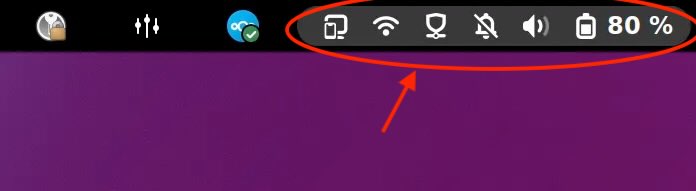 { align="right", width="250" }
 - Turn off Night Light
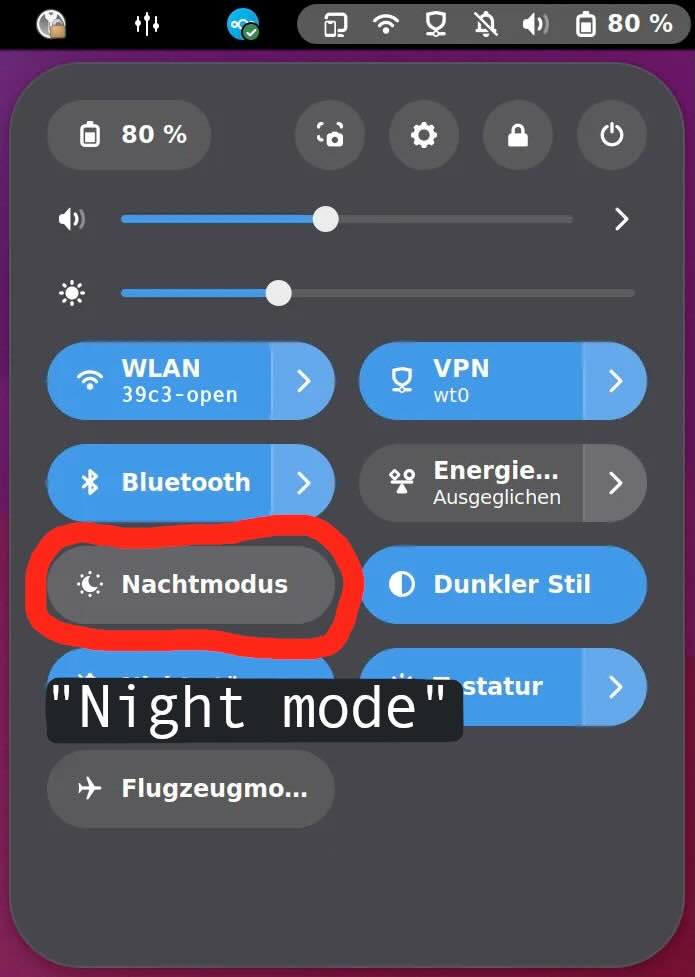 { align="right", width="250" }
Alternative if control center not found:
- Open Settings
- Click on Displays
- Toggle Night Light off
KDE Plasma
To turn off "Night Color":
- Open System Settings
- Go to Display and Monitor
- Click on Night Color.
4. Toggle off
macOS
!!! info "" Both "True Tone" and "Night Shift" need to be turned off!
To turn off "Night Shift" and "True Tone":
- Click the Control Center icon in the menu bar
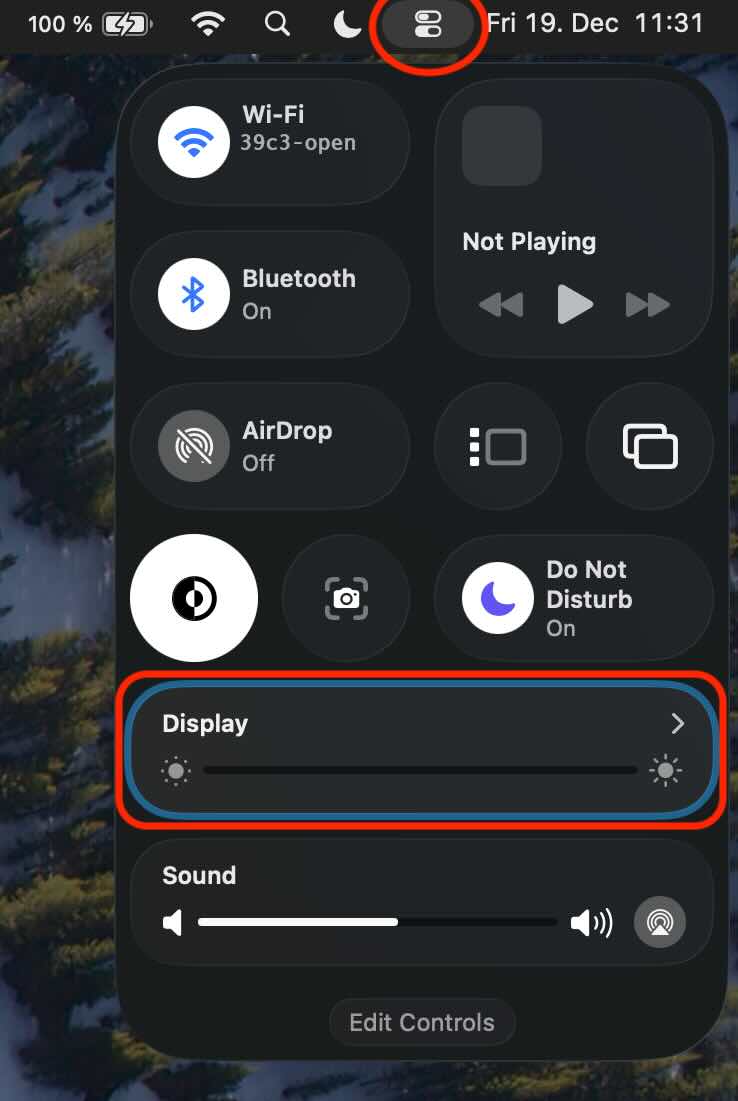 { align="right", width="250" }
 - Select Display
- Turn Night Shift and True Tone off
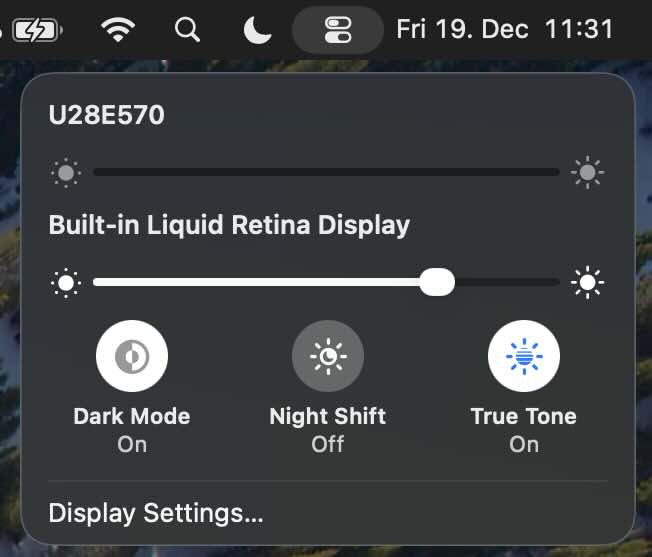 { align="right", width="250" }
Sway (Wayland)
To turn off "Night Light":
- Utilize
wlsunsetor similar for configuration changes
Windows 10/11
To turn off "Night Light":
- Open Settings
- Click on System
- Select Display.
- Toggle Night light off
Additional Tools/ Helpers
Loudness Monitoring
Each stream should have loudness monitoring at rtmp://ingest2.c3voc.de/relay/sX_loudness.
Be aware of the delay since this is rendered from the stream!
vplay
To debug voctomix sources and output during buildup, you could use https://github.com/voc/vplay.
Only use in a break and when connected via ethernet to the VOC network. Too many TCP clients and a wonky network connection may stall the streaming and recording! Do not use via VPN or WLAN!
If you only want loudness information, please use the loudness monitoring stream.